

In this quick guide I will show you how to connect to a Databricks SQL Warehouse Cluster with DBeaver.
In my example, I have set up a Databricks workspace and created a few tables in Unity Catalog.
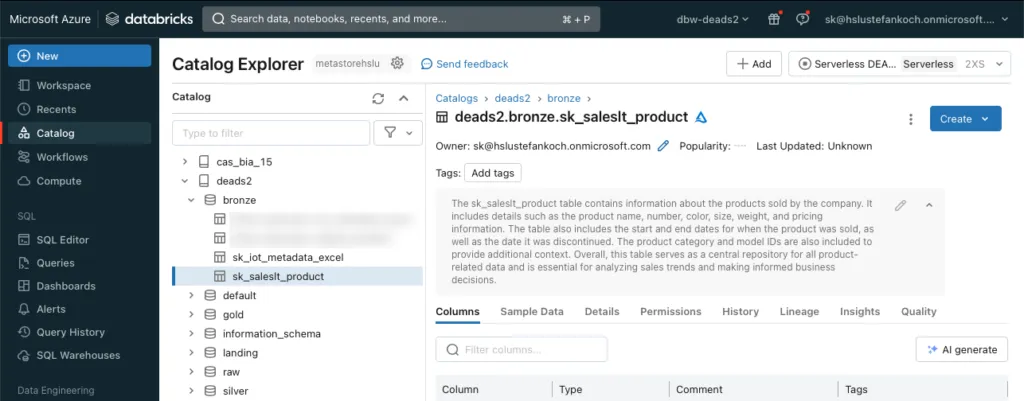
I have created a serverless SQL warehouse in the Databricks workspace. This is suitable for spontaneous queries, among other things, as there is no need for a lengthy cluster start-up. Further details on Databricks SQL Warehouse clusters can be found here: https://docs.databricks.com/en/sql/admin/create-sql-warehouse.html
To access the Databricks SQL Warehouse locally, I use the SQL client software DBeaver Community. This is free in the Community Edition and offers a wide range of connectors to work with various database systems.
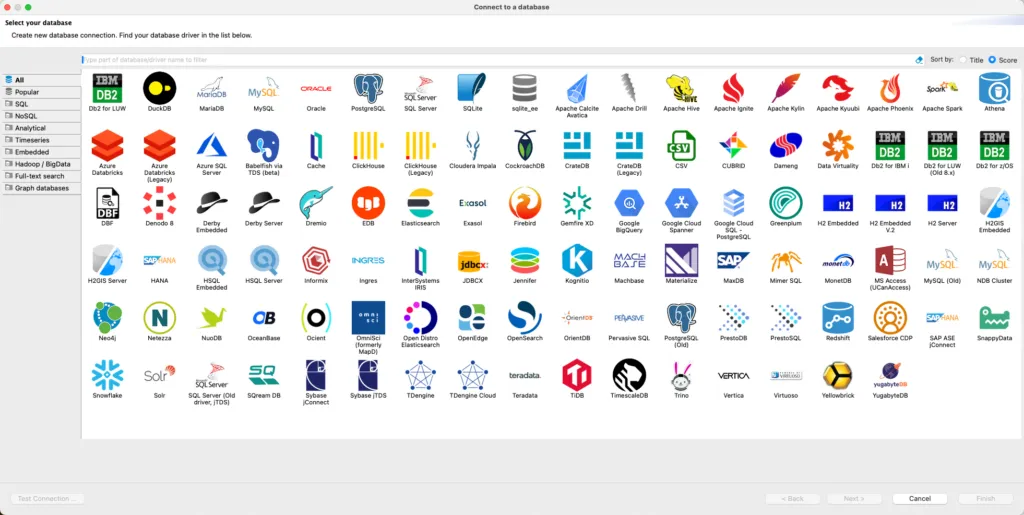
When DBeaver is started for the first time, you can click on the icon at the top left to connect to a new database.
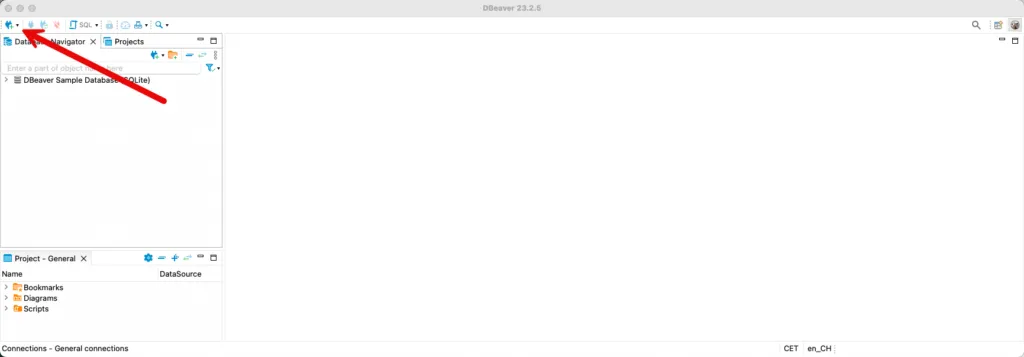
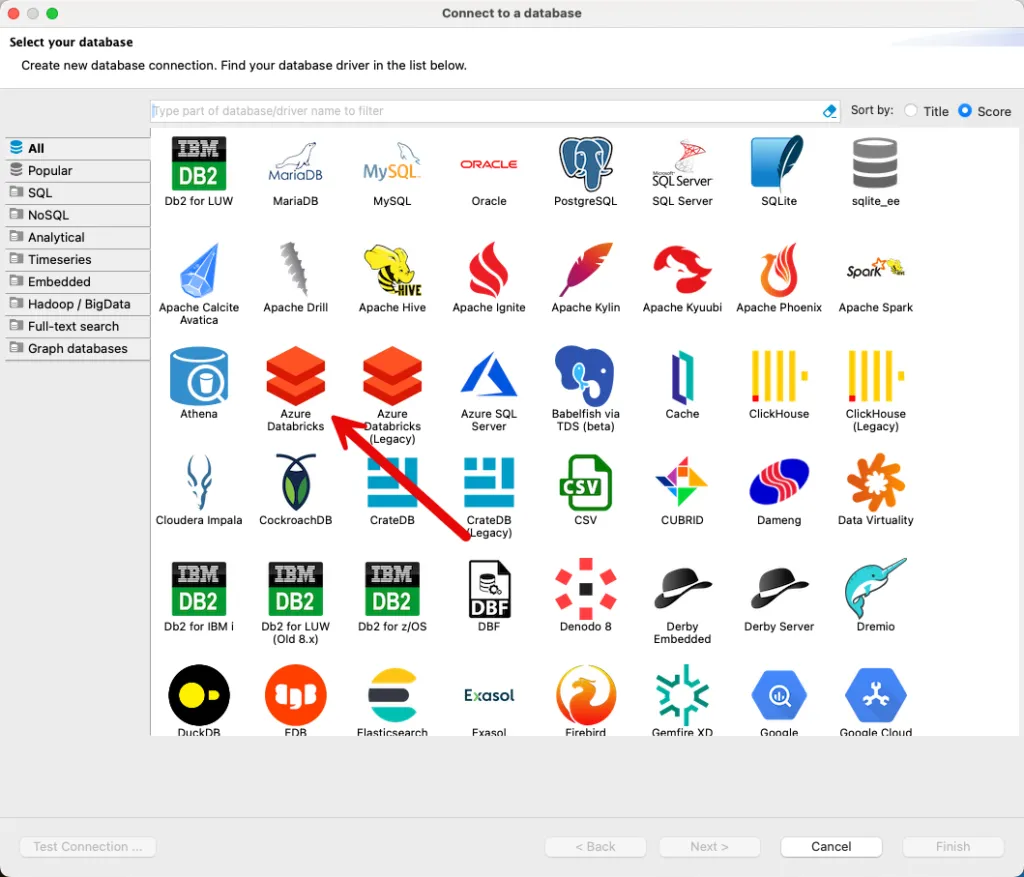
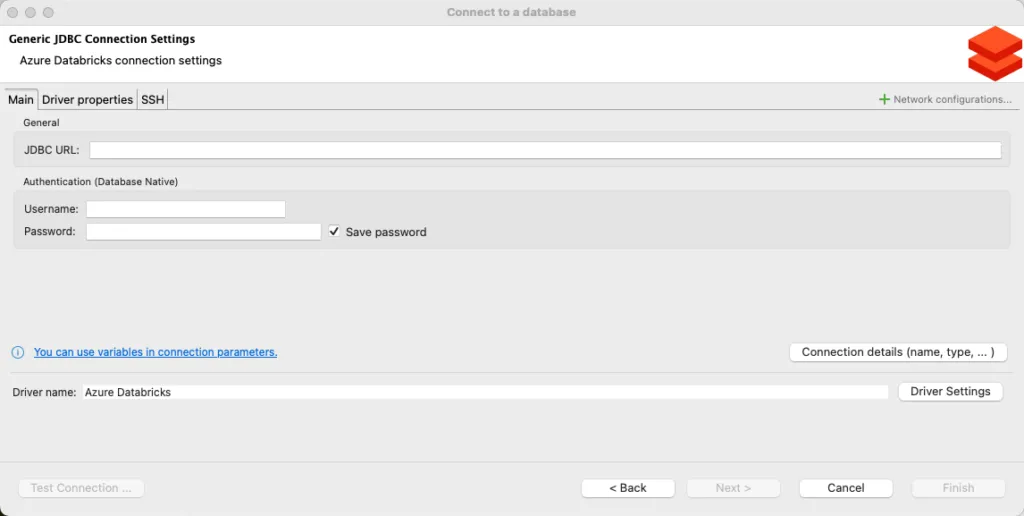
There I select the database “Azure Databricks”.
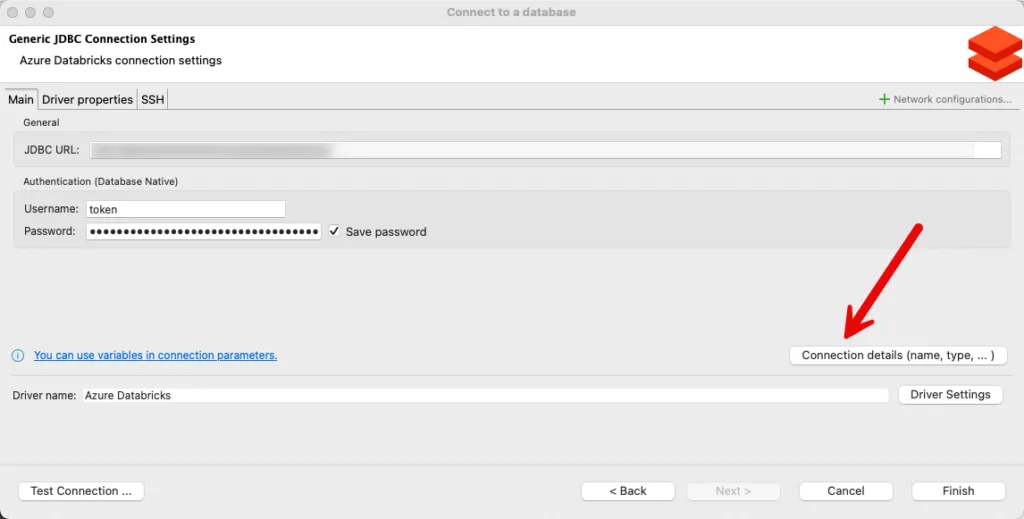
You then have to fill in 3 fields for the connections:
- JDBC URL: The unique URL of the Databricks SQL Warehouse
- Username: We will connect with a Personal Access Token, so the username is token
- Password: The content of the personal access token
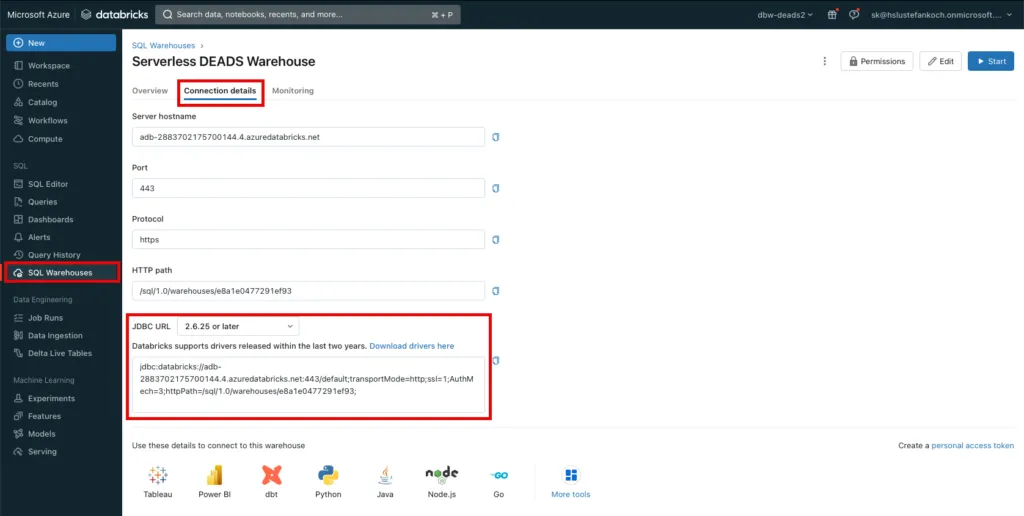
The details for the connection can be found in the warehouse. Under Connection details, the JDBC URL can be copied and pasted into DBeaver.
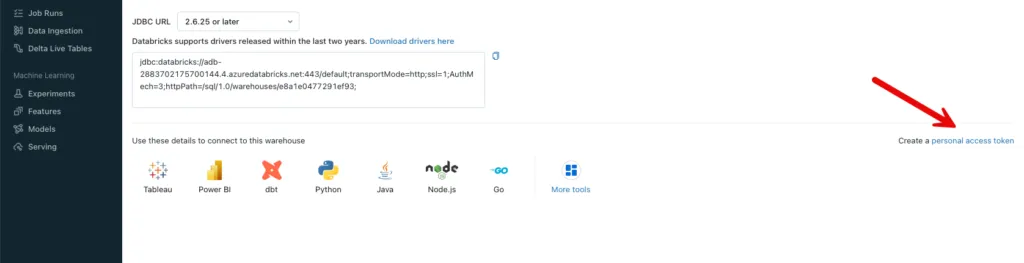
There is a button at the bottom right to create the Personal Access Token:
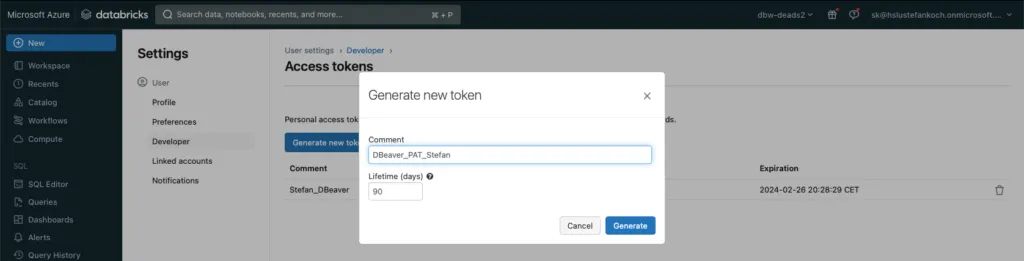
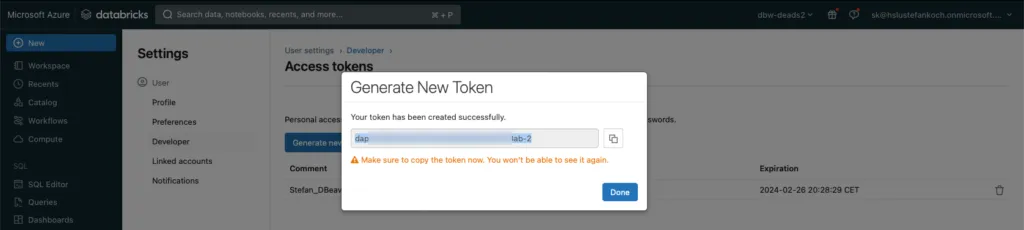
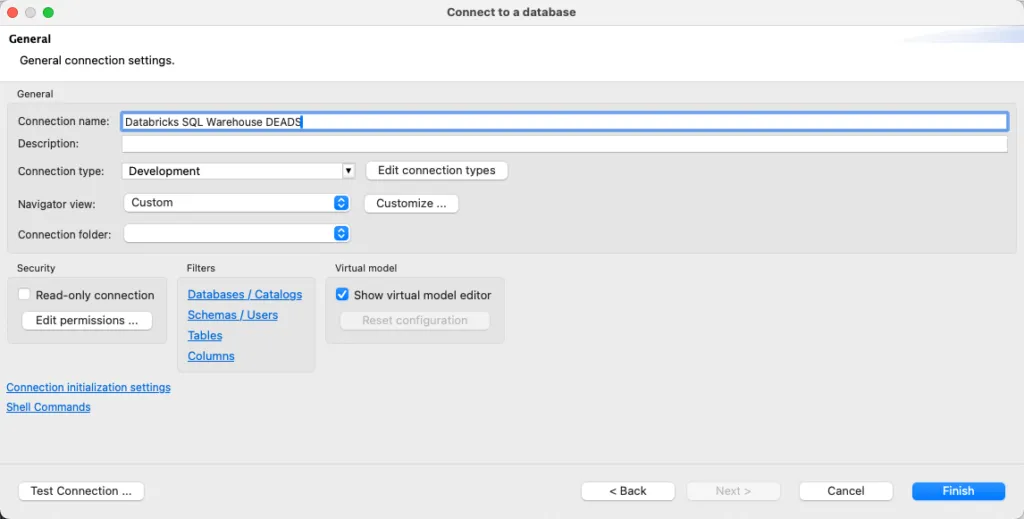
The token is inserted in the password field in DBeaver and I assign a descriptive name in “Connection details”.
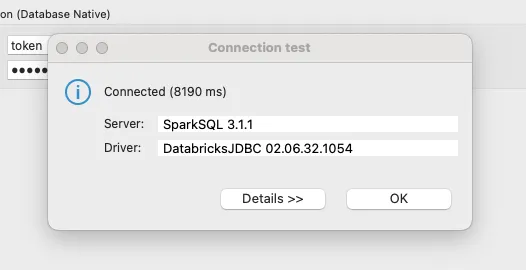
A click on “Test Connection” indicates that the connection is working.
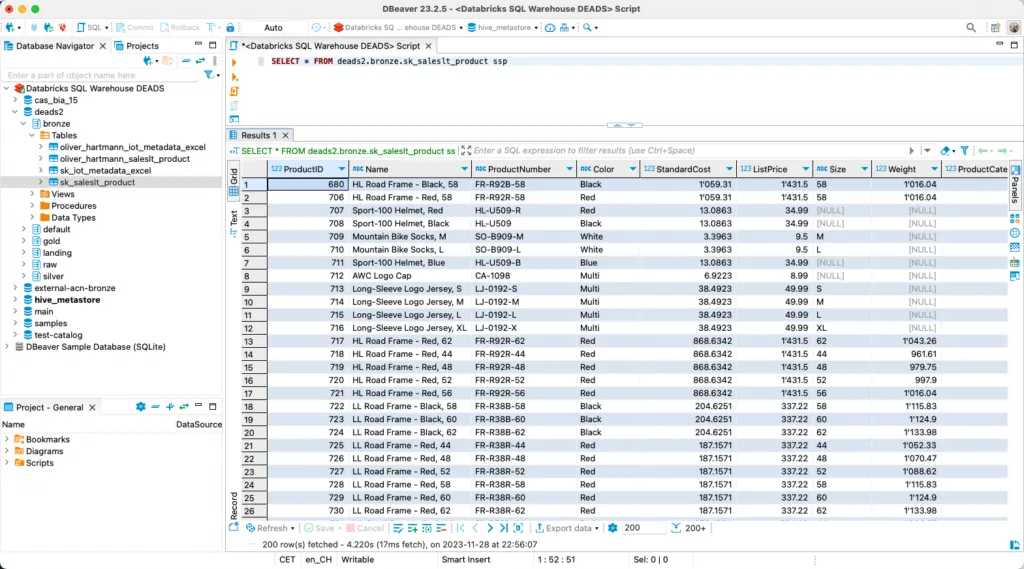
The data can now be queried.
Related Articles

From SharePoint to Databricks – and Back: Seamless Bidirectional Integration
In modern data workflows, it’s essential to collect data where it originates and deliver it to where it’s needed. In this blog post, I’ll show how to connect **SharePoint directly with Databricks** –

From Snapshots to CDC: How to load Snapshot-Data with Databricks Delta Live Tables
In this article I describe how to load data from recurring full snapshots with Delta Live Tables relatively easily and elegantly into a bronze table without the amount of data exploding.

Step-by-Step in Databricks: Creating a Date and Time dimension for BI Analytics
In this article, you will learn how to set up date and time dimensions in Databricks to enable precise time-based analyses and reports.
Comments
Comments are powered by giscus. You need a GitHub account to comment.